You're watching an intense action scene, but the hero's punch lands a full second after the sound effect. You're trying to play a rhythm game, but your taps are hopelessly out of sync with the music. This frustrating phenomenon, known as audio latency or lag, is the silent killer of the wireless audio experience. While Bluetooth technology has liberated us from cables, it sometimes shackles us with a delay that can ruin movies, gaming, and video calls.
Understanding and fixing Bluetooth audio delay is crucial because it directly impacts your media consumption, productivity, and entertainment. This guide will demystify the technical reasons behind the lag, from codec limitations to device-specific quirks. You will learn a systematic, step-by-step approach to diagnosing the source of the delay and applying targeted fixes, ranging from simple settings tweaks to hardware upgrades, ensuring your audio stays perfectly in sync.
Understanding the Root Causes of Bluetooth Latency
Bluetooth audio delay, often called latency, is the time it takes for a digital audio signal to travel from your source device (like a phone or PC) to your headphones. This isn't a flaw in the traditional sense, but a fundamental trade-off in wireless transmission. The audio data must be encoded, transmitted wirelessly, received, decoded, and finally played through the drivers. Each step adds milliseconds of delay. While modern Bluetooth standards have minimized this, it's often still perceptible, especially when visual cues are involved, like in video playback or gaming.
Several technical factors contribute to this lag. The Bluetooth version (5.3, 5.2, etc.) sets the baseline for potential speed and bandwidth, but the audio codec used is arguably more important. Standard codecs like SBC, which prioritize universal compatibility, introduce more processing delay than advanced, low-latency codecs like aptX Adaptive, aptX LL, or Sony's LDAC. Furthermore, environmental interference from Wi-Fi routers, microwaves, or other Bluetooth devices can cause data packet loss, forcing the system to retransmit data and increasing lag.
Your device's hardware and software also play a massive role. An older smartphone with a mediocre Bluetooth chipset will struggle compared to a modern flagship. The operating system's audio processing stack adds its own delay, which can vary between Android, iOS, Windows, and macOS. On computers, generic Bluetooth drivers are a common culprit, as they lack the optimizations provided by manufacturer-specific drivers for dedicated Bluetooth adapters or built-in chips.
Immediate Software and Settings Fixes
Before investing in new hardware, exhaust all software-based solutions. Start by ensuring all your devices are running the latest operating system and firmware updates. Manufacturers frequently release updates that improve Bluetooth stability and performance. For your headphones, check the companion app (like Sony Headphones Connect or Jabra Sound+) for any firmware updates specifically designed to reduce latency or improve connection protocols.
On your source device, dive into the developer options. On Android, enable Developer Options by tapping "Build Number" seven times in Settings. Inside, look for "Bluetooth Audio Codec" and "Bluetooth Audio Sample Rate." Experiment with different codecs if your headphones support them; switching from SBC to aptX or LDAC can dramatically reduce lag. On Windows, right-click the speaker icon, select "Sounds," go to the "Playback" tab, double-click your headphones, and navigate to the "Advanced" tab. Try reducing the default format (e.g., from 24-bit, 48 kHz to 16-bit, 44.1 kHz) to lessen the processing load.
For video content, many streaming apps and media players have built-in audio delay or synchronization sliders. In YouTube, Netflix, or VLC Media Player, look for an "Audio Sync" or "AV Sync" adjustment feature. You can manually add a negative delay to the audio to realign it with the video. While this is a band-aid solution, it's highly effective for consistent delays from specific apps. For gaming on Windows, ensure your audio device is set to "Headphones" mode, not "Hands-free AG Audio," which is a low-bandwidth mode for calls and introduces severe lag.
Optimizing Your Hardware and Connection
Your physical environment and hardware setup are critical. Bluetooth operates on the 2.4GHz radio frequency, which is crowded. Minimize interference by moving away from Wi-Fi routers, microwave ovens, USB 3.0 ports, and dense metal objects. A simple change like moving your computer or gaming console to a more open location, or using a USB extension cable to position a Bluetooth dongle away from electronic clutter, can yield a noticeably more stable connection.
If you're using a desktop PC, the built-in Bluetooth on the motherboard is often an afterthought with poor antenna placement. Upgrading to a dedicated, high-quality USB Bluetooth adapter can be a game-changer. Look for adapters that explicitly support Bluetooth 5.1 or higher and low-latency codecs like aptX LL. For gaming, consider a dedicated wireless solution that bypasses Bluetooth entirely, such as headphones using a proprietary 2.4GHz RF dongle (like many from Steelseries, Logitech, or Corsair), which offer near-zero latency.
Sometimes, the simplest fix is to manage device pairing. Bluetooth connections can degrade when a device is paired with too many others. On both your source device and headphones, delete old, unused pairings. When connecting for a latency-sensitive task like gaming, turn off Bluetooth on other nearby devices you aren't using to free up the radio spectrum. Also, try to keep the source device and headphones within a clear line of sight, as the human body (especially your head) can be a significant signal blocker.
Advanced Solutions: Codecs, Apps, and Accessories
For those seeking the lowest possible latency, understanding and leveraging advanced codecs is essential. If your headphones and source device both support Qualcomm's aptX Low Latency (aptX LL) or aptX Adaptive, this is your best bet for synced audio, often achieving delays under 40ms, which is imperceptible to most people. On Android, you can force codec selection in Developer Options. For iPhones, the AAC codec is well-optimized and typically offers better performance than SBC, though it may not match dedicated low-latency codecs.
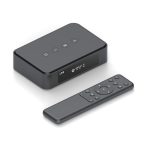
There are software tools designed to help. On Windows, applications like "Bluetooth Audio Latency Corrector" can help measure and compensate for delay. For gamers and content creators, using an external audio interface or a USB DAC (Digital-to-Analog Converter) that connects to your headphones via a wire eliminates Bluetooth latency entirely. You can also explore specialized Bluetooth transmitters that support aptX LL, which you plug into your TV's optical audio port, creating a low-latency link to your compatible headphones.
In scenarios where lip-sync in videos is the primary issue, certain modern smart TVs and streaming devices have automatic audio delay correction features. Look for settings labeled "Audio Delay," "AV Sync," or "Lip Sync" in your TV's sound or expert settings menu. Enabling this allows the TV to automatically calculate and correct the delay introduced by the Bluetooth transmission, providing a hassle-free solution for movie and TV show viewing.
When to Accept Latency vs. When to Upgrade
It's important to set realistic expectations. For casual music listening, any latency is irrelevant. For phone calls and podcasts, minor delays are also unnoticeable. The problem arises only when audio needs synchronization with a visual component. You must assess your primary use case. If you are a mobile gamer or frequently watch movies on your tablet, investing in headphones with certified low-latency technology is a wise decision.
If you've tried all software fixes, optimized your environment, and your hardware simply doesn't support better codecs, you've hit the limit of your current gear. At this point, an upgrade is the only path forward. When shopping for new headphones in 2026, prioritize models that explicitly list support for low-latency codecs like aptX Adaptive, aptX LL, or LHDC LL. Furthermore, ensure your source device (phone, computer, TV dongle) also supports that same codec, as it requires both ends to function.
Ultimately, the pursuit of zero latency may lead you back to wires for specific tasks. Keeping a pair of quality wired headphones for studio work, competitive gaming, or precise video editing is a practical approach. Embrace a hybrid strategy: use your convenient Bluetooth headphones for commuting and music, and switch to a wired or dedicated low-latency wireless set for immersive, lag-free media consumption and gaming. This gives you the best of both worlds without compromise.
Key Takeaways
- ✓ Bluetooth audio delay is caused by the encoding, transmission, and decoding process, and is heavily influenced by the audio codec used, with SBC being the worst and aptX LL/Adaptive being the best for latency.
- ✓ Your first line of defense is software: update all device firmware, experiment with codec settings in Developer Options (Android), and use audio sync sliders in video apps to manually correct delay.
- ✓ Hardware and environment optimization is crucial; reduce wireless interference, consider a quality USB Bluetooth adapter for PCs, and for gaming, prioritize proprietary 2.4GHz RF wireless over standard Bluetooth.
- ✓ Advanced solutions include using dedicated low-latency Bluetooth transmitters, external DACs to bypass Bluetooth, and enabling automatic lip-sync correction on modern TVs and streaming devices.
- ✓ Know when to upgrade: if your primary use is sync-sensitive (gaming, movies) and your gear lacks modern low-latency codecs, investing in compatible headphones and source devices is the ultimate fix.
Frequently Asked Questions
What is the main cause of Bluetooth audio delay?
The primary cause is the processing time required for audio encoding, wireless transmission, and decoding. The choice of audio codec is the biggest factor; basic codecs like SBC have high latency, while advanced ones like aptX Low Latency are designed specifically to minimize this delay. Environmental interference and outdated device drivers also significantly contribute.
Can I fix Bluetooth latency on an iPhone?
Yes, but your options are more limited than on Android. iPhones use the AAC codec, which is generally well-optimized within Apple's ecosystem. Ensure both your iPhone and headphones are updated. For video, use the audio sync slider in apps like Netflix. For a major improvement, you may need headphones that support AAC well, or consider using a Lightning-to-3.5mm adapter with wired headphones for zero-latency scenarios.
Are "gaming" Bluetooth headphones better for reducing lag?
Not necessarily. Many "gaming" headphones that connect via standard Bluetooth still suffer from latency. The true low-latency gaming headphones typically use a proprietary 2.4GHz radio frequency dongle, not Bluetooth, to achieve near-zero lag. Always check the connection technology; if it says "Bluetooth," look for specific low-latency codec support like aptX LL.
How does the Bluetooth version (like 5.0 vs 5.3) affect latency?
Newer Bluetooth versions (5.1, 5.2, 5.3) improve overall efficiency, range, and data throughput, which can create a better foundation for low latency. However, the version alone doesn't guarantee low latency. The audio codec supported by the version is far more important. A device with Bluetooth 5.3 using the SBC codec will likely have more lag than a device with Bluetooth 5.0 using aptX Low Latency.
Will closing background apps on my phone reduce audio delay?
It can help marginally. Background apps consuming CPU resources can interfere with the real-time processing needed for audio encoding. Closing unnecessary apps frees up system resources, potentially leading to a more stable Bluetooth data stream. However, this is a minor fix compared to changing codecs or reducing physical interference.
Conclusion
Taming Bluetooth audio delay requires a blend of technical understanding and practical troubleshooting. We've explored the journey from the fundamental causes rooted in codec limitations and radio interference to actionable fixes in your device settings, hardware setup, and software environment. The key is to diagnose systematically: start with simple software updates and settings tweaks, optimize your physical connection, and finally, consider hardware upgrades if your use case demands it.
Your path to perfectly synced audio is clear. Begin by applying the immediate software fixes outlined in Section 2 to your current devices. Identify the codecs your gear supports and use that knowledge to make informed decisions, whether you're adjusting a slider in a video app or shopping for your next pair of headphones. By taking a proactive and informed approach, you can reclaim a seamless, immersive audio-visual experience and truly enjoy the wireless freedom Bluetooth promises.

Emily Reynolds is a U.S.-based electronics expert with over 8 years of experience reviewing and analyzing consumer electronics and smart devices. She specializes in gadgets, home electronics, and emerging tech designed to improve everyday life. Emily’s reviews focus on real-world performance, usability, and long-term reliability, helping readers understand complex technology and choose electronics that truly fit their needs.