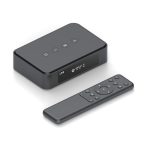
You've just wrapped up a crucial interview or a long day of filming, and your Rode Wireless Pro receiver is flashing a dreaded "Storage Full" warning. This compact audio powerhouse has captured every word, but now you need to make room for tomorrow's session. Knowing how to efficiently manage and delete files directly from the device is not just a technical skill; it's essential for maintaining your creative workflow and ensuring you never miss a critical moment because your storage was clogged with old takes.
This guide is designed for content creators, journalists, and filmmakers who rely on the Rode Wireless Pro system. We will move beyond the basic manual instructions to provide a comprehensive, step-by-step walkthrough of the file deletion process, covering both the onboard receiver menu and the companion Rode Central software. You'll learn not only how to delete files but also best practices for file management, data safety, and how to integrate this task seamlessly into your post-production routine. By the end, you'll have full control over your device's storage, turning a potential headache into a simple, routine task.
Understanding the Rode Wireless Pro Storage System
The Rode Wireless Pro receiver doubles as a high-quality audio recorder, featuring built-in storage that operates independently of any connected camera or smartphone. This internal storage, typically 32GB, is where all your safety recordings, ISO tracks, and merged files are saved when the recorder is activated. It's crucial to understand that deleting files from this internal storage does not affect any audio that was simultaneously transmitted to your camera—those files remain safely on your camera's memory card. The internal storage is designed as a backup and for situations where you are recording directly to the receiver.
Files are organized in a straightforward folder structure that you can view both on the device and when connected to a computer. Each recording session creates a new file with a timestamp-based name, making it relatively easy to identify clips chronologically. However, without a visual waveform display on the receiver's small screen, identifying specific files for deletion requires a methodical approach. The system records in high-quality WAV format by default, which offers superb audio fidelity but also consumes storage space quickly, necessitating regular management.
To avoid accidental data loss, develop a habit of checking your storage status at the start of every shoot. Navigate to the receiver's menu by pressing the central joystick, scroll to "Settings," and then select "Storage." Here, you will see a clear percentage indicator of how much space is used and free. If you're below 20% free space, it's time to plan a cleanup session. Proactively managing this prevents the system from being unable to record at a crucial moment.
Method 1: Deleting Files Directly from the Receiver
Deleting files directly on the Rode Wireless Pro receiver is the most immediate way to clear space, ideal when you're on location and need to continue recording. First, power on the receiver and press the central joystick to enter the main menu. Using the joystick, navigate to and select the "Files" option. This will present you with a list of all recorded audio files, sorted by date and time. The interface will show the filename and duration, but not the content, so it helps to know approximately when you recorded the files you wish to delete.
To select a file for deletion, highlight it with the joystick and press down on the joystick to select. A sub-menu will appear; choose "Delete." The device will ask for confirmation—"Are you sure?"—to prevent accidental loss. Confirm by selecting "Yes." You can repeat this process for individual files. For a more comprehensive cleanup, you can select "Delete All" from the main Files menu, which will wipe the entire internal storage. Use this option with extreme caution and only if you are absolutely certain all files have been securely backed up elsewhere.
A practical tip for field work is to perform a quick review and delete immediately after a successful transfer. For instance, after a morning interview, transfer the files to your laptop during a lunch break. Once you've verified the files are safely on your computer and, ideally, on a backup drive, you can then use the receiver's menu to delete those specific files from the device, freeing up space for the afternoon session. This creates a efficient cycle of record, transfer, verify, and delete.
Method 2: Managing Files via Rode Central Software
For more precise and visual file management, the Rode Central desktop application is the superior tool. First, download and install the latest version of Rode Central from the official Rode website, ensuring compatibility with your computer's operating system. Connect your Rode Wireless Pro receiver to your computer using the supplied USB-C cable. Launch Rode Central, and the software should automatically detect your connected device. This method provides a full visual interface, including waveform displays, which makes identifying the correct files to delete much easier and safer.
Once connected, navigate to the "Recordings" or "File Management" tab within Rode Central. Here, you will see a complete list of all audio files stored on the receiver's internal memory, displayed with their filenames, durations, and visual waveforms. You can play back clips directly in the software to confirm their content—a critical step before deletion. To delete, simply select the checkbox next to the files you want to remove, or click on a file to highlight it. Then, click the "Delete" button (often represented by a trash can icon). The software will prompt for confirmation before permanently removing the files from the receiver.
Rode Central also enables advanced management functions. You can sort files by date, size, or name, and you can select multiple non-consecutive files by holding the Ctrl key (or Command key on Mac) while clicking. This is perfect for deleting all files from a specific project while preserving others. Furthermore, you can use Rode Central to format the entire internal storage, which is the most thorough cleanup method. This is best done at the end of a major project, after all files have been backed up in at least two separate locations, such as your computer's hard drive and a cloud storage service.
Best Practices for Data Safety and Workflow
Before you delete a single file, the golden rule is to always ensure you have at least two verified backups. The internal storage of the Rode Wireless Pro is a temporary holding area, not an archive. Your primary workflow should involve transferring files to a primary storage device (like a laptop or portable SSD) and a secondary backup (like a cloud service or a separate hard drive) as soon as possible after recording. Use the USB-C connection for fast transfers, and verify the file integrity by spot-checking a few clips for audio quality before considering deletion.
Develop a consistent naming and folder convention on your computer to avoid confusion. When you transfer files from the receiver, immediately rename and organize them into project-specific folders. For example, instead of keeping the generic "REC001.WAV" filename, rename it to "2026-04-10_Interview_SubjectName_Take1.WAV". This practice makes it easy to cross-reference which files on your computer correspond to which files still on the receiver, eliminating the risk of deleting something you haven't yet backed up.
Integrate storage management into your regular gear checklist. At the end of every shoot day, make it a routine to: 1) Transfer all files from the receiver to your primary editing station, 2) Back up those files to a secondary location, 3) Open Rode Central to review, confirm backups, and then delete the files from the receiver, and 4) Check the receiver's battery level and storage status for the next day. This systematic approach turns file management from a reactive panic into a calm, professional habit that safeguards your work and keeps your gear ready.
Troubleshooting Common Deletion Issues
A common issue users face is the receiver not showing any files in the menu, or a file appearing to be "stuck" and undeletable. This can sometimes occur if the file system becomes slightly corrupted, often due to the receiver being disconnected from a computer without properly ejecting it first. If you encounter this, the first step is to safely reconnect the receiver to a computer via USB, open Rode Central, and see if the software can read and manage the files. The software's more robust system can often bypass minor glitches present in the onboard menu.
If Rode Central also cannot delete a problematic file, or if the storage shows incorrect usage data, a factory reset of the receiver may be necessary. Be warned: this will erase all settings and paired connections, not just audio files. To perform a reset, go to the receiver's menu, navigate to Settings > System > Reset. Ensure you have backed up all audio files first, and be prepared to re-pair your transmitters and reconfigure your preferences afterward. This is a last-resort solution, but it will typically resolve persistent storage errors and restore normal function.
For ongoing storage health, periodically use the "Format" function within Rode Central, not just the "Delete All" option. Formatting completely resets the storage to a fresh, clean state, which can improve performance and reliability. Only do this after a complete and verified backup. If you consistently find yourself running out of space despite regular deletions, consider your recording settings. Recording in 32-bit float at the highest sample rate creates large files. For non-critical dialogue or backup tracks, you might consider using a lower sample rate (like 48 kHz instead of 96 kHz) to extend your available recording time.
Key Takeaways
- ✓ The Rode Wireless Pro has internal storage for backup recordings, which is separate from your camera's memory card and requires active management.
- ✓ You can delete files directly on the receiver via its menu system, ideal for quick cleanups in the field, but always confirm backups first.
- ✓ The Rode Central software provides a visual, waveform-based interface for safer, more precise file management and is the recommended method for thorough cleanups.
- ✓ Always maintain a two-backup minimum (e.g., computer + cloud) of all audio files before deleting anything from the receiver's internal storage.
- ✓ Integrate storage checks and file transfers into your post-shoot routine to prevent "Storage Full" errors and ensure your gear is always ready to record.
Frequently Asked Questions
Will deleting files from my Rode Wireless Pro receiver also delete them from my camera?
No, absolutely not. The Rode Wireless Pro receiver's internal storage is completely independent. When you record, audio is transmitted to your camera (or phone) and simultaneously recorded internally as a backup. Deleting files from the receiver only removes this internal safety copy. The files on your camera's SD card remain untouched and safe.
How do I know which files are safe to delete?
A file is only safe to delete after you have successfully transferred it to your primary editing computer and created a second backup (e.g., on an external drive or cloud service). Use the Rode Central software to visually identify files by their waveform and date. A best practice is to delete files immediately after you have verified the backups, ideally organizing them into project folders on your computer first.
Can I recover files after deleting them from the receiver?
No, the deletion process on the Rode Wireless Pro is permanent. There is no "Trash" or "Recycle Bin" on the device. Once you confirm deletion, the storage space is marked as available for new recordings, and the original data is overwritten. This underscores the critical importance of backing up your files before any deletion.
My receiver says "Storage Full," but I don't see many files. What should I do?
This can indicate a file system error. First, connect the receiver to a computer and use Rode Central to see if it can read the storage correctly. If the problem persists, you may need to format the internal storage via Rode Central. Remember, formatting erases everything, so only proceed if you are certain all files are backed up or if the storage is malfunctioning.
What is the difference between "Delete All" and "Format"?
"Delete All" (available on the device and in software) removes all audio files but leaves the underlying file system and folder structure intact. "Format" (typically only in Rode Central) completely erases and rebuilds the file system from scratch. Formatting is a more thorough solution for troubleshooting errors and is recommended for a periodic deep clean, while "Delete All" is for routine clearing of audio content.
Conclusion
Managing the storage on your Rode Wireless Pro is a fundamental skill that protects your valuable audio and ensures your equipment is always operational. We've explored the two primary methods for deletion—directly on the receiver's interface for quick field operations and through the powerful Rode Central software for detailed, safe management. More importantly, we've emphasized the non-negotiable practice of creating multiple backups before any deletion, turning a simple technical task into a pillar of professional data integrity.
Take control of your audio workflow today. Download the latest version of Rode Central, connect your receiver, and perform a full review and backup of your existing files. Then, establish a simple post-shoot ritual of transfer, backup, and cleanup. By making these steps habitual, you free yourself from technical worries and can focus entirely on capturing exceptional sound, confident that your work is secure and your gear is always ready for the next great recording.

Emily Reynolds is a U.S.-based electronics expert with over 8 years of experience reviewing and analyzing consumer electronics and smart devices. She specializes in gadgets, home electronics, and emerging tech designed to improve everyday life. Emily’s reviews focus on real-world performance, usability, and long-term reliability, helping readers understand complex technology and choose electronics that truly fit their needs.