Imagine the freedom of moving around your studio, untethered from your desk, while still monitoring your mix with pristine accuracy. For years, audio professionals viewed wireless headphones as a compromise, suitable for casual listening but plagued by latency and fidelity issues unfit for critical audio work. That paradigm is shifting rapidly. With advancements in wireless technology, connecting your favorite wireless headphones to a professional audio interface is not only possible but can be a game-changer for modern workflows.
This topic matters because the tools of creativity are evolving. Whether you're a podcaster needing to gesture freely during a recording, a voice-over artist who wants to check a take from across the room, or a producer who values a clutter-free desk, understanding this integration unlocks new potential. This article will demystify the process, explore the technological solutions available in 2026, and provide a clear, step-by-step guide to achieving a stable, high-quality wireless monitoring setup from your audio interface. You will learn the essential hardware, the critical software settings, and how to navigate the trade-offs to make an informed decision for your studio.
Understanding the Core Challenge: Latency and Fidelity
The primary hurdle in using wireless headphones for studio work is latency, the delay between the audio signal leaving your interface and reaching your ears. In critical listening scenarios like recording vocals or playing virtual instruments, even a few milliseconds of delay can be disorienting and make performance impossible. Traditional Bluetooth codecs, like the common SBC, introduce significant latency—often 100-200ms—which is unacceptable for real-time monitoring. Furthermore, many consumer-grade wireless headphones prioritize battery life and convenience over uncompressed audio quality, using lossy compression that can subtly alter the frequency response and stereo image of your mix.
However, the wireless landscape has dramatically improved. Newer protocols like Bluetooth 5.3 with LE Audio and the LC3plus codec offer much lower latency profiles, some promising under 20ms under ideal conditions. More significantly, dedicated professional wireless systems operating in the 2.4GHz or 5GHz RF bands, such as those from brands like Sennheiser or Audio-Technica, have offered near-zero latency for years. In 2026, these technologies are becoming more accessible and integrated. The key is understanding that not all wireless is created equal; the protocol and codec your headphones use are the most important factors determining feasibility for studio use.
For practical advice, your first step is to identify the specifications of your wireless headphones. Research their supported codecs: aptX Adaptive, aptX LL (Low Latency), or the newer LC3plus are promising for Bluetooth. If your headphones only support SBC or standard AAC, they are likely unsuitable for any serious recording or mixing tasks due to latency. For mixing-only scenarios where real-time performance isn't needed, latency is less critical, but audio fidelity remains a concern. Always prioritize headphones that advertise a "studio" or "low latency" mode.
The Essential Hardware: Transmitters, Adapters, and Built-In Solutions
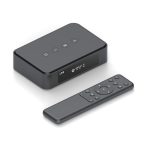
An audio interface typically has no built-in wireless capability. Therefore, you need a bridge—a transmitter that takes the analog or digital audio output from your interface and broadcasts it wirelessly to your headphones. The most common and reliable method is a dedicated low-latency wireless transmitter system. These often come as a kit with a dedicated receiver that pairs with specific headphones, or as a universal transmitter that can connect to a compatible receiver dongle for your headphones. Brands like Avantree, Audio-Technica (with their System 10), and Sennheiser (RS series) offer such solutions.
Another increasingly popular option in 2026 is the USB-C or USB-A wireless transmitter dongle. These plug directly into a computer port and create a point-to-point wireless connection, often using a proprietary 2.4GHz RF signal for lower latency than standard Bluetooth. Some high-end wireless headphone models, like certain ones from Audeze or Drop, include these dongles. To integrate this with your audio interface, you would set your computer's audio output to the dongle, while your Digital Audio Workstation (DAW) still uses the interface for input and processing. This creates a dual-device setup on your computer.
For a more integrated approach, some modern audio interfaces now feature built-in Bluetooth with low-latency codec support. For example, an interface might include aptX Adaptive Bluetooth transmission. In this case, the process is simplified: you pair your compatible headphones directly to the interface as you would to a phone. While convenient, it's crucial to verify the supported codecs and test the actual latency. Regardless of the hardware path, the physical connection is usually straightforward: the transmitter connects to the interface's headphone output via a 3.5mm or 1/4" TRS cable, or via digital outputs like optical (TOSLINK) if available.
Configuring Your Digital Audio Workstation (DAW) and Computer
Once your hardware is connected, software configuration is critical. If you are using a dedicated transmitter connected to your interface's headphone jack, your DAW configuration may not change at all. Your interface remains the selected audio device in your DAW settings, and the headphone output is simply being broadcast wirelessly. However, you must ensure the transmitter is powered and that the headphone output volume on the interface is set to an appropriate level to drive the transmitter cleanly.
If you are using a USB dongle or your computer's built-in Bluetooth to transmit audio, you have a more complex setup. In this scenario, your computer has two audio devices: the interface (for input and possibly main outputs) and the wireless transmitter (for output). On a Mac, you can use the built-in "Audio MIDI Setup" utility to create a Multi-Output Device, aggregating the interface and the wireless transmitter. You would then set this aggregate device as the output in your DAW. On Windows, you might need third-party software like VoiceMeeter or use the native spatial sound settings to manage multiple outputs, though an aggregate device setup is less native.
The most important setting to adjust is the buffer size. When using two different audio devices, you may experience clocking issues or increased system latency. It's generally recommended to keep your audio interface as the core clock source. In your DAW's audio preferences, select your interface as the input and output device if using its headphone jack with a transmitter. If using a separate wireless system as the output, you may need to increase your buffer size slightly to prevent glitches, which will add latency. Always perform a direct latency test by recording a direct sound and measuring the round-trip delay to calibrate your expectations.
Step-by-Step Connection Guide for a Typical Setup
Let's walk through a common and reliable setup using a dedicated low-latency transmitter (like an Avantree Oasis Plus) with a standard audio interface (like a Focusrite Scarlett). First, ensure your wireless headphones and transmitter are fully charged or plugged in. Power on the transmitter and put your headphones into pairing mode. Consult their manuals for the specific pairing procedure, which usually involves holding a button until an LED flashes. The devices should link automatically.
Next, make the physical connection. Using an appropriate cable (often a 3.5mm to 3.5mm or 3.5mm to 1/4" TRS cable), connect the output of the transmitter to the headphone output jack on your audio interface. Power on your interface and computer. Open your DAW. In your DAW's audio settings, ensure your audio interface is selected as both the input and output device. The audio signal flow is now: DAW -> Interface -> Headphone Output -> Transmitter -> Wireless Headphones.
Finally, conduct a critical test. Play a known piece of music or generate a click track in your DAW. Listen carefully for any audio dropouts, distortion, or synchronization delay. Try clapping into a microphone while monitoring through the headphones to gauge the recording latency. If the delay is noticeable and disruptive for recording, this setup may only be suitable for mixing or editing. If using a system that advertises less than 40ms of latency, it may be workable for tracking, but your personal tolerance is the ultimate judge.
Weighing the Pros and Cons for Studio Work in 2026
The advantages of a successful wireless studio headphone setup are compelling. The freedom of movement is the most obvious benefit, allowing you to step back from your desk to listen to your mix from different points in the room, handle hardware, or interact with clients without being physically tied down. It also reduces cable clutter and wear and tear on your interface's headphone jack. For collaborative sessions, multiple listeners can easily share the feed if you have a multi-pair transmitter system, making it excellent for teaching or production meetings.
However, significant trade-offs remain. Even with the best low-latency systems, there is still a minuscule delay that some engineers with finely tuned reflexes may find off-putting for ultra-critical tasks like punch-in recording. Battery dependence is a major consideration; there is nothing worse than your headphones dying during a long mixing session. Furthermore, introducing another electronic device into your signal chain is another potential point of failure or source of RF interference, though this is rare with modern digital systems.
To wrap up this section, the decision is highly workflow-dependent. For tasks like editing, sound design, mixing, podcast recording (where host monitoring isn't needed), and general listening, a quality wireless setup in 2026 is absolutely viable and highly recommended. For tracking vocals or live instruments where the performer needs to hear themselves in real time, a wired connection is still the gold standard for guaranteed zero-latency peace of mind. Consider a hybrid approach: keep a trusted pair of wired headphones plugged in for tracking, and use your wireless pair for everything else.
Key Takeaways
- ✓ Latency is the primary challenge; prioritize wireless systems using low-latency codecs like aptX LL, aptX Adaptive, or LC3plus, or dedicated RF systems.
- ✓ You need a transmitter device to bridge your audio interface's output to your wireless headphones; this can be a dedicated kit, a USB dongle, or, increasingly, a built-in feature on new interfaces.
- ✓ DAW and computer configuration is crucial, especially if using a separate wireless device for output; you may need to create aggregate audio devices or adjust buffer sizes.
- ✓ Always perform practical latency and audio quality tests before relying on a wireless setup for critical recording or mixing work.
- ✓ A wireless headphone setup offers fantastic freedom and convenience for editing, mixing, and collaborative listening but may not fully replace wired monitoring for all tracking scenarios.
Frequently Asked Questions
Can I connect any Bluetooth headphones directly to my audio interface?
Only if your audio interface has built-in Bluetooth transmission capabilities, which is still a rare feature on professional interfaces. Most interfaces require an external Bluetooth transmitter connected to their headphone output. Furthermore, standard Bluetooth headphones (using SBC or AAC codecs) will introduce too much latency for recording.
What is an acceptable latency for recording vocals with wireless headphones?
For recording, latency under 10ms is generally considered imperceptible and workable. Between 10ms and 30ms, many performers can adapt, but it may feel slightly "off." Latency over 30ms becomes increasingly disruptive and is not recommended for tracking. Always check the specifications of your wireless system for its promised latency and test it yourself.
Will using wireless headphones affect the sound quality of my mix?
It can. Many wireless systems use data compression to transmit audio. While high-end systems use lossless or very high-bitrate compression, some fidelity loss is possible compared to a direct wired connection. It's advisable to check final mixes on trusted wired speakers or headphones to ensure your wireless monitoring isn't misleading you on fine details.
Can I connect multiple pairs of wireless headphones to one interface?
Yes, but you need a specific system designed for it. Some professional wireless transmitters, like the Sennheiser RS 175 or certain base stations from Audio-Technica, can broadcast to multiple paired receivers simultaneously. This is ideal for teaching studios or collaborative mixing sessions.
My wireless setup has a slight hum or static. How can I fix this?
This is often due to a ground loop or interference. First, try using a different power outlet for your transmitter and interface. Ensure your transmitter is not placed directly on top of or next to your computer, router, or other RF-emitting devices. Using a balanced connection (if your interface and transmitter support it) or a ground loop isolator on the audio cable between the interface and transmitter can also eliminate hum.
Conclusion
Connecting wireless headphones to an audio interface is no longer a futuristic fantasy but a practical reality in 2026, enabled by leaps in low-latency wireless technology. We've explored the core challenges of latency and fidelity, the necessary hardware bridges from transmitters to modern interfaces with built-in solutions, the essential software configurations for your DAW, and a clear step-by-step guide to get you connected. The key is matching the right technology—be it aptX Adaptive Bluetooth or a dedicated RF system—to your specific studio needs, understanding that wireless excels in freedom and convenience for many tasks but may not yet dethrone the wired connection for all critical applications.
Embrace this wireless potential by first auditing your current headphones' capabilities and considering a dedicated low-latency transmitter as an affordable entry point. Test it thoroughly in your own environment with your music. The goal is not to eliminate cables dogmatically but to expand your creative toolkit, giving you the flexibility to work in the way that best serves your art and workflow. Start by experimenting with a wireless setup for your mixing and editing sessions, and experience the newfound freedom it brings to your creative space.

Emily Reynolds is a U.S.-based electronics expert with over 8 years of experience reviewing and analyzing consumer electronics and smart devices. She specializes in gadgets, home electronics, and emerging tech designed to improve everyday life. Emily’s reviews focus on real-world performance, usability, and long-term reliability, helping readers understand complex technology and choose electronics that truly fit their needs.