You've finally settled in for movie night, queued up the perfect film on your laptop, and aimed to cast it to your big-screen TV. The video pops up beautifully, but the sound—a tinny, weak trickle—still comes from your laptop speakers, ruining the cinematic experience. This frustrating audio-video disconnect is a common modern dilemma, but the good news is that it's entirely solvable without a single cable. In 2026, wireless audio technology has evolved to offer seamless, high-quality solutions that can transform your living room into a personal theater or a powerful presentation space.
Understanding how to bridge this audio gap matters because it unlocks the full potential of your devices. Whether you're streaming content, giving a business presentation, or gaming, synchronized, robust audio is key to immersion and clarity. This guide will walk you through the five primary wireless methods available today, from ubiquitous standards to cutting-edge protocols, explaining their setup, strengths, and ideal use cases. You'll learn not just the "how," but the "why," empowering you to choose the best wireless audio solution for your specific setup and needs.
The Foundation: Understanding Your Wireless Audio Options
Before diving into connections, it's crucial to understand the landscape of wireless audio technology in 2026. The methods broadly fall into two categories: those that transmit both audio and video together, and those that handle audio independently. The first category includes standards like Miracast, Wi-Fi Direct (used by screen mirroring functions), and proprietary protocols from Apple and Google. These are excellent when you want to mirror or cast your entire laptop screen. The second category is for audio-only transmission and includes Bluetooth, Wi-Fi-based multi-room audio systems (like Sonos, AirPlay 2, or Chromecast built-in), and dedicated wireless audio transmitters. Your choice will depend on whether your goal is a mirrored display or simply sending sound to a better speaker system.
Each technology operates on different principles with varying impacts on audio quality, latency, and ease of use. Bluetooth, for instance, is nearly universal but has historically dealt with compression and audio delay, known as latency. Wi-Fi-based methods typically offer higher bandwidth, supporting superior audio codecs like AAC, aptX HD (for Bluetooth in 2026), or even lossless formats, with generally better synchronization with video. Furthermore, the ecosystem of your devices plays a huge role; an Apple laptop will naturally pair best with AirPlay-compatible devices, while a Windows PC might leverage Miracast or Bluetooth more effectively.
To make an informed decision, start by auditing your gear. Check your laptop's operating system and specifications (does it support Wi-Fi Direct? Bluetooth 5.3?). Then, examine your TV. Is it a "smart" TV from the last few years? What wireless protocols are listed in its manual or settings menu (e.g., AirPlay, Chromecast built-in, Bluetooth Audio)? Identifying the capabilities you already own is the first step toward a simple, cable-free setup. Often, the solution is already built into your devices, waiting to be activated.
Method 1: HDMI Alternatives – Screen Mirroring & Casting Protocols
The most straightforward way to get both video and audio to your TV wirelessly is to use a screen mirroring or casting protocol. This method effectively replaces an HDMI cable. For Windows laptops, look for a feature called "Cast" or "Connect to a wireless display" in your Action Center or Settings menu. This uses Miracast technology to project your entire screen. When you connect, both your laptop's video and audio are transmitted to the TV. Ensure your TV supports Miracast (often branded as Screen Mirroring, Smart View, or similar) and that both devices are on the same Wi-Fi network. The audio routing is automatic, handling everything from system sounds to movie audio.
For users in the Apple ecosystem, AirPlay is the seamless solution. On a Mac, click the Control Center icon in the menu bar, then select Screen Mirroring and choose your AirPlay 2-compatible TV or an Apple TV box. The audio will automatically follow the video. Similarly, if you have a Google Chromecast dongle plugged into your TV or a TV with Chromecast built-in, you can cast your entire Chrome browser tab or your desktop from the Chrome browser's menu. This sends the audio from that tab or desktop to the TV. These methods are ideal for watching browser-based video, giving presentations, or any scenario where you need the TV to display exactly what's on your laptop screen.
The primary advantage here is synchronization; since audio and video are packaged together, lip-sync issues are minimal. However, performance is heavily dependent on your Wi-Fi network strength. For a stable, high-quality stream, ensure your laptop and TV are on a robust 5GHz Wi-Fi network, not a congested 2.4GHz band. If you experience stuttering, try moving closer to your router or reducing network load from other devices. This method turns your TV into a true wireless monitor, perfect for movies, shows, and slideshows where audio-video sync is critical.
Method 2: Bluetooth – The Universal (But Nuanced) Connector
Bluetooth remains the most universally recognized wireless audio technology. Most modern laptops and an increasing number of smart TVs come with Bluetooth capabilities. To connect, put your TV into Bluetooth pairing mode (usually found in Settings > Sound > Sound Output or Bluetooth Settings). On your laptop, open the Bluetooth settings, scan for devices, and select your TV from the list. Once paired, your laptop will route all system audio to the TV's speakers. This is a pure audio connection, so you'll need to handle video separately, perhaps by using an HDMI cable for picture only or by using a separate casting method for video.
The landscape of Bluetooth audio in 2026 has improved significantly with widespread adoption of newer versions like Bluetooth 5.3 and advanced codecs. While basic SBC codec may still cause noticeable latency (a delay between video and audio), many TVs and laptops now support low-latency codecs like aptX Adaptive or LE Audio's LC3. Check your device specifications. If both ends support a low-latency codec, the sync for video can be quite good. For music listening or podcasts, this is less of an issue. The key is to manage expectations; Bluetooth is convenient and works everywhere, but it may require tweaking audio delay settings on your TV if you're using it alongside a separate video signal.
For an optimal Bluetooth experience, first, ensure no other device is actively connected to your TV's Bluetooth, as most TVs only support one connection at a time. Second, keep the devices within a clear line of sight, about 10 feet apart, to avoid dropouts. Third, if you encounter persistent audio lag when watching video, explore your TV's audio settings for an "Audio Delay" or "Lip-Sync" adjustment tool. You can calibrate this by playing a video with a clear rhythmic beat or a speaking person and adjusting the delay until the sound matches the action. Bluetooth is a powerful tool for simplicity, but it demands a bit of fine-tuning for perfect AV harmony.
Method 3: Wi-Fi Audio Ecosystems – AirPlay 2, Chromecast & Multi-Room Systems
Beyond simple mirroring, dedicated Wi-Fi audio ecosystems offer the most robust and high-fidelity wireless audio experience. These protocols are designed for stability and quality. If you have a modern smart TV from brands like Samsung, LG, Sony, or TCL, it may have AirPlay 2 or Chromecast built-in specifically for audio. This is different from screen mirroring. On a Mac, you can select your TV as an audio output device directly from the sound menu in the menu bar, sending only audio via AirPlay 2. On a Windows or ChromeOS laptop, you can cast audio to a Chromecast-enabled TV from music apps like Spotify or YouTube Music, or from the Chrome browser.
The benefits of this method are substantial. Wi-Fi has greater bandwidth than Bluetooth, reducing audio compression and supporting higher quality streams. It also tends to have lower latency and is more stable over longer ranges within your home network. Furthermore, systems like AirPlay 2 allow for multi-room audio synchronization. You could, for instance, send the audio from your laptop to your living room TV and a kitchen speaker simultaneously, perfectly in sync. This makes it excellent for parties or moving around the house while listening to a podcast or music playlist from your computer.
To utilize this, your laptop and TV must be on the same local Wi-Fi network. For AirPlay 2 audio, look for the AirPlay icon in your Mac's audio output selection. For Chromecast audio, use apps that support the "Cast" function. If your TV isn't natively equipped, you can add this capability inexpensively with a dongle like an Apple TV (for AirPlay 2) or a standard Chromecast with Google TV. These devices connect to your TV's HDMI port and receive the Wi-Fi audio stream from your laptop, playing it back through your TV's speakers or connected sound system. This is often the best balance of convenience, quality, and reliability.
Method 4 & 5: Dedicated Hardware & Troubleshooting Essentials
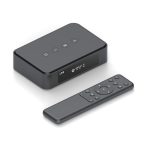
If your TV lacks modern wireless features, dedicated hardware bridges the gap effectively. The first option is a wireless HDMI transmitter kit. These consist of a transmitter that plugs into your laptop's HDMI port and a receiver that plugs into your TV's HDMI port. They create their own direct wireless link, bypassing your home Wi-Fi. This is an excellent cable replacement that handles high-definition video and audio simultaneously with minimal latency, ideal for gaming or high-quality movie playback. The second option is a Bluetooth transmitter for your TV. If your TV has an audio output (like optical or 3.5mm), you can plug in a Bluetooth transmitter, making your TV a Bluetooth receiver for your laptop. This reverses the common setup but achieves the same goal.
Even with the best methods, you may encounter issues. The most common is audio lag or lip-sync error. Always check your TV's sound settings for an "Audio Sync," "Lip-Sync," or "Audio Delay" adjustment. This allows you to delay the video to match the audio or vice-versa. Another frequent problem is the audio not switching over. On Windows, right-click the sound icon, select "Open Sound settings," and under "Output," manually select your wireless device. On a Mac, use the Sound menu in the menu bar or System Settings. Ensure your laptop's volume is turned up and not muted.
Finally, network health is paramount for Wi-Fi-based methods. If audio is choppy or disconnects, restart your laptop, TV, and router. Try moving devices closer to your router or using a less congested Wi-Fi channel. For Bluetooth, "forget" the device on both ends and re-pair it. Remember, the goal is a seamless experience. Don't hesitate to mix methods: use an HDMI cable for flawless video and a dedicated Wi-Fi audio protocol (like AirPlay 2) for perfect, lag-free sound. In 2026, with a bit of knowledge and troubleshooting, you have all the tools to achieve pristine wireless audio from your laptop to your TV.
Key Takeaways
- ✓ Screen mirroring protocols (Miracast, AirPlay, Google Cast) transmit audio and video together, making them ideal for a true wireless HDMI replacement when both devices are on a strong Wi-Fi network.
- ✓ Bluetooth is a universal audio-only solution that has improved with low-latency codecs, but may require manual audio sync adjustment when paired with a separate video signal.
- ✓ Wi-Fi audio ecosystems (AirPlay 2, Chromecast built-in) offer high-quality, stable audio-only streaming with features like multi-room sync and are often the best balance of quality and convenience.
- ✓ Dedicated hardware, like wireless HDMI kits or Bluetooth transmitters, can add advanced wireless capabilities to older TVs that lack built-in smart features.
- ✓ Successful setup depends on knowing your device's capabilities, ensuring a strong network, and being prepared to troubleshoot common issues like audio lag through your TV's sync settings.
Frequently Asked Questions
Why is there a delay between the video on my TV and the audio from my laptop?
This audio-video lag, or latency, is most common with Bluetooth due to processing and compression delays. It can also occur on congested Wi-Fi networks. To fix it, first check if your TV has an "Audio Delay," "Lip-Sync," or "AV Sync" adjustment in its sound settings. Calibrate this while playing video. For Bluetooth, ensure both devices support a low-latency codec like aptX LL. For Wi-Fi methods, try moving closer to your router or using a 5GHz network band.
My TV doesn't show up as a wireless audio device on my laptop. What should I do?
First, ensure both devices are on the same Wi-Fi network for casting/mirroring methods. For Bluetooth, make sure your TV's Bluetooth is in "pairing" or "discoverable" mode. Restart both the laptop and the TV. Check your TV's manual to confirm it supports the wireless protocol you're trying to use (e.g., AirPlay, Chromecast, Miracast). Sometimes, a firmware update for your TV is required to enable these features.
Can I get surround sound or Dolby Atmos wirelessly from my laptop to my TV?
Yes, but it depends on the method and your equipment. High-bandwidth Wi-Fi methods like wireless HDMI kits or certain screen mirroring protocols can transmit multi-channel audio. Audio ecosystems like AirPlay 2 can also transmit Dolby Atmos content from specific apps (like Apple TV+) to compatible receivers/soundbars. Standard Bluetooth typically cannot handle multi-channel surround sound formats. Check the specifications of your wireless method and your TV/sound system for format support.
Is the audio quality worse over wireless compared to an HDMI cable?
With modern protocols, the difference can be negligible for most listeners. A wired HDMI connection is technically the benchmark for fidelity as it's a direct, uncompressed link. However, Wi-Fi-based methods (AirPlay 2, Chromecast, wireless HDMI kits) use minimal compression and support high-quality codecs, delivering excellent sound. Bluetooth has improved but may still apply more compression, which audiophiles might notice. For everyday movie watching and music, a good wireless connection provides fantastic quality.
What is the simplest method if I just want to play music from my laptop on my TV speakers?
The simplest method is Bluetooth if both devices support it. It's a direct pairing without needing your home Wi-Fi network. Alternatively, if your TV has AirPlay 2 or Chromecast built-in, using that from your laptop's audio output menu or a music app is extremely simple and often higher quality. For example, on a Mac, you can click the volume icon in the menu bar and select your AirPlay-compatible TV as the output in just two clicks.
Conclusion
Wirelessly connecting your laptop's audio to your TV is no longer a technical chore but a gateway to a superior entertainment and productivity setup. We've explored the five main avenues: the unified approach of screen mirroring, the universal convenience of Bluetooth, the high-fidelity world of Wi-Fi audio ecosystems, and the problem-solving power of dedicated hardware. Each method has its place, whether you're aiming for perfect movie-night synchronization, streaming a music playlist, or delivering a flawless presentation. The key is to match the technology to your specific devices and your primary use case.
Now, it's time to declutter your entertainment center and experience the freedom of wireless audio. Start by investigating the built-in capabilities of your TV and laptop. Experiment with the method that seems most compatible. Don't be discouraged by initial hiccups like audio lag—use the troubleshooting tips to fine-tune your setup. In 2026, with the knowledge you now possess, you can confidently cut the cord and fill your room with rich, seamless sound from your laptop, transforming how you enjoy media and work from your living room.

Emily Reynolds is a U.S.-based electronics expert with over 8 years of experience reviewing and analyzing consumer electronics and smart devices. She specializes in gadgets, home electronics, and emerging tech designed to improve everyday life. Emily’s reviews focus on real-world performance, usability, and long-term reliability, helping readers understand complex technology and choose electronics that truly fit their needs.